
Call hours: choose when stations can call you
Call hours let each user choose when stations can call or notify them. Outside those hours, stations do not ring that user and do not notify them, including visitor sign-in notices. This is useful when you only work set hours but stay signed in where you answer calls, for example in Microsoft Teams.
Call hours are available on the Professional and Enterprise plans. On the Essential plan, the Call hours card shows an upgrade message instead.
Set your own call hours
- Click the gear icon next to your name, then under Personal, select Notifications & calls.
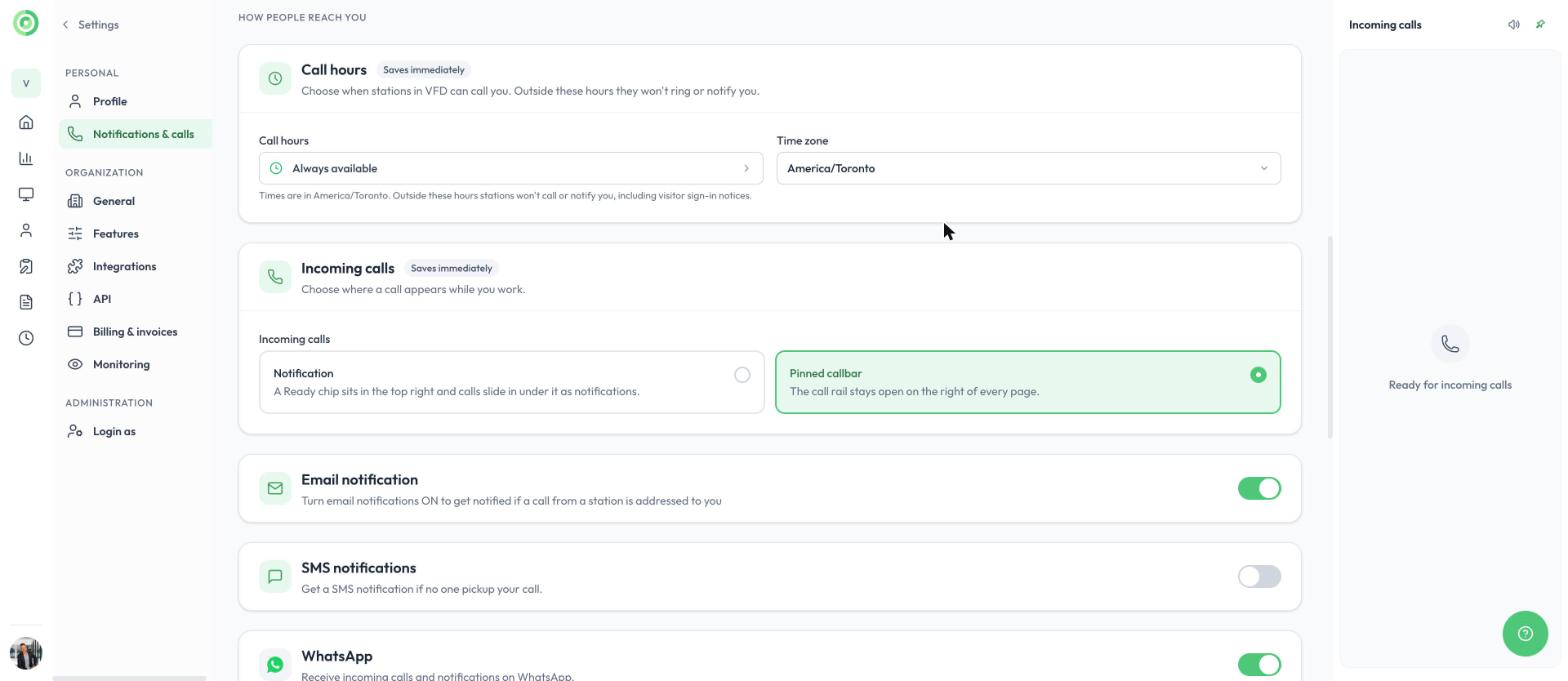
- Under How people reach you, find the Call hours card. By default it says Always available.
- Click the Call hours field to open the Call hours window.
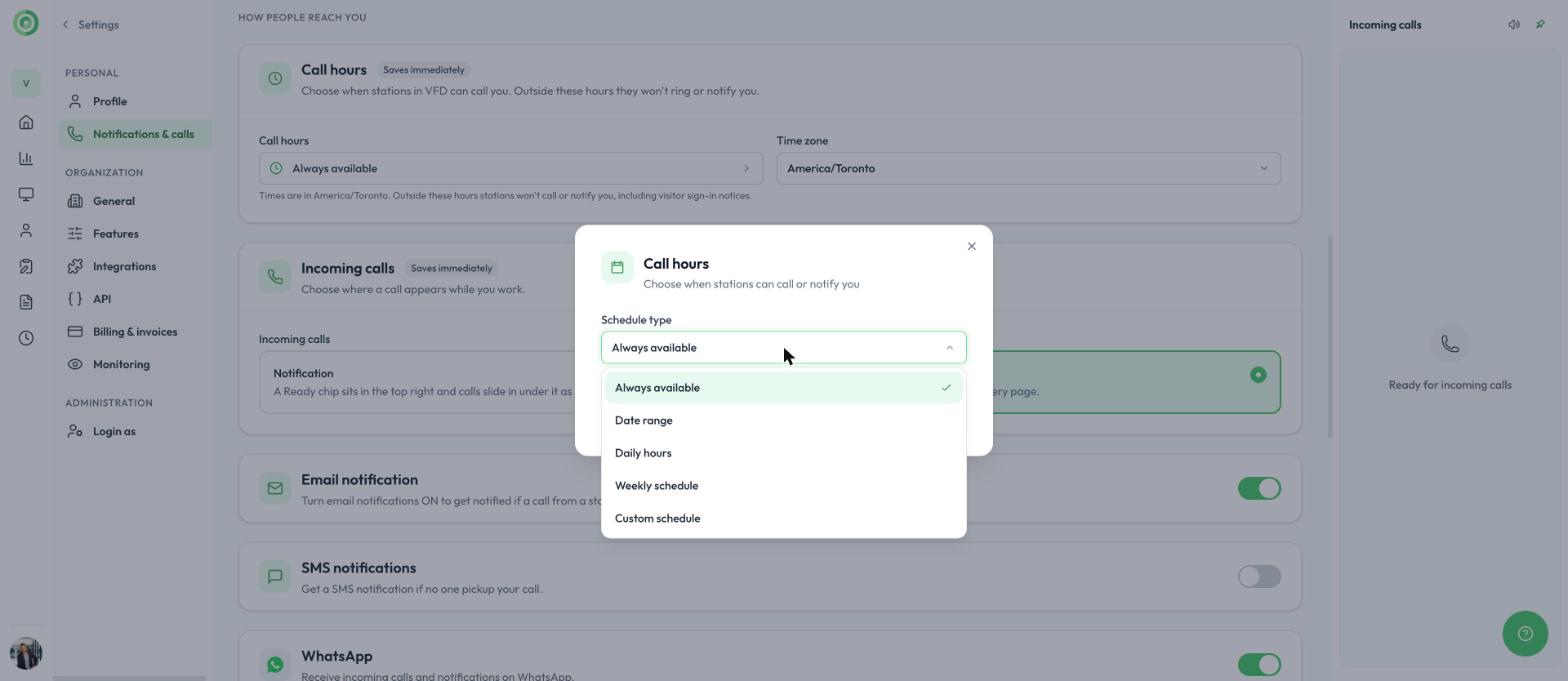
- Choose a Schedule type and fill in the days and times.
- Click Save schedule.
- Check the Time zone field next to it. Your call hours follow this time zone.
The card saves immediately, so there is no other Save button to click. A message confirms that your call hours are saved.
The schedule types are:
- Always available: stations can always call you. This is the default.
- Date range: stations can call you only between a start date and an end date.
- Daily hours: stations can call you between the same two times every day.
- Weekly schedule: stations can call you only on the days of the week you tick.
- Custom schedule: combine a date range, daily hours and days of the week. For example, Monday to Friday from 09:00 to 17:00.
To be reachable at all times again, open the window, choose Always available and click Save schedule.
Set call hours for another user
Users with the Owner, Admin or Manager role can set call hours for other users in the organization. Managers cannot change the call hours of an Admin.
- In the main menu, click User management.
- Click the pencil icon next to the user.
- Under Calls & notifications, find Call hours, click the field and set the schedule as described above.
- Click Save schedule, and check the user's Time zone.
In the user list, a small badge appears next to the name of anyone who is outside their call hours right now. Hover over it to see their call hours.
What happens outside call hours
- Stations do not ring you and do not send you notifications for calls or visitor sign-ins, on any channel (dashboard, mobile app, Microsoft Teams, email, SMS, WhatsApp or Slack).
- Your personal call forwarding number is not used.
- In a group that uses a call queue, the station skips you and moves to the next person. In a group that rings everyone at once, the other members still ring.
- If nobody behind a station button can be reached, the button turns grey and shows a small Unavailable label, so visitors know to choose another option.
- Visits are still recorded in your History.
Call hours and office hours
Call hours are set for each user. Office hours are set for each station and close the whole station with a closed screen. Use office hours when the lobby is closed, and call hours when one person is off. To learn more, read Office hours and the closed screen, Groups and call queue and Settings Menu.
Need more help?
Please contact us through the live chat.