Office hours and the closed screen
Office hours let you choose when visitors can use a station. Outside those hours, the station hides its buttons and shows a closed screen, so visitors are not left calling when nobody is there to answer. Office hours are set for each station.
To change a station's settings, you need the Owner, Admin or Manager role. Office hours are available on all plans.
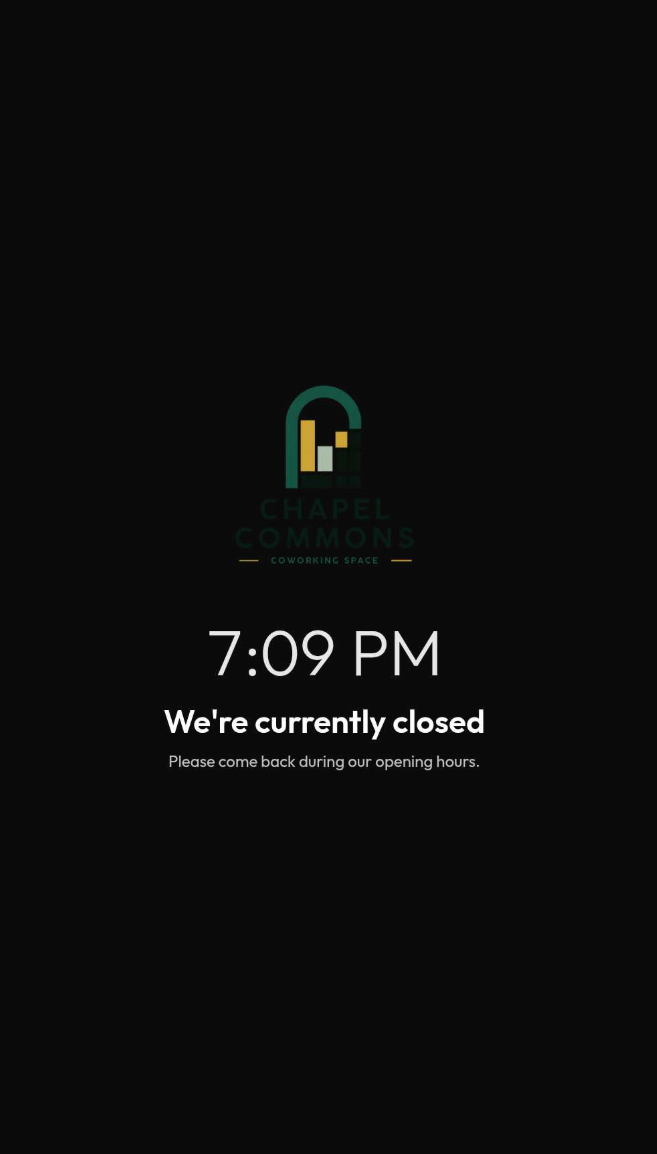
What visitors see when the station is closed
- A full-screen closed screen with your logo, a large clock and the message "We're currently closed", or your own message if you add one.
- When the station opens again within the next 24 hours, the screen also says when, for example "We open again tomorrow at 08:00".
- The station buttons are hidden, so visitors cannot start a call, sign in or open documents. They can still change the language.
- The content moves slightly every minute to protect the screen.
- Staff can still call the station from the dashboard while it is closed.
- If the station has an AI agent, it does not greet visitors while the station is closed. A conversation that has already started can finish, and a visitor who is signing out can finish signing out.
Set office hours for a station
- In the main menu, click Stations.
- On the location card, click the three dots next to the station, then click Edit.
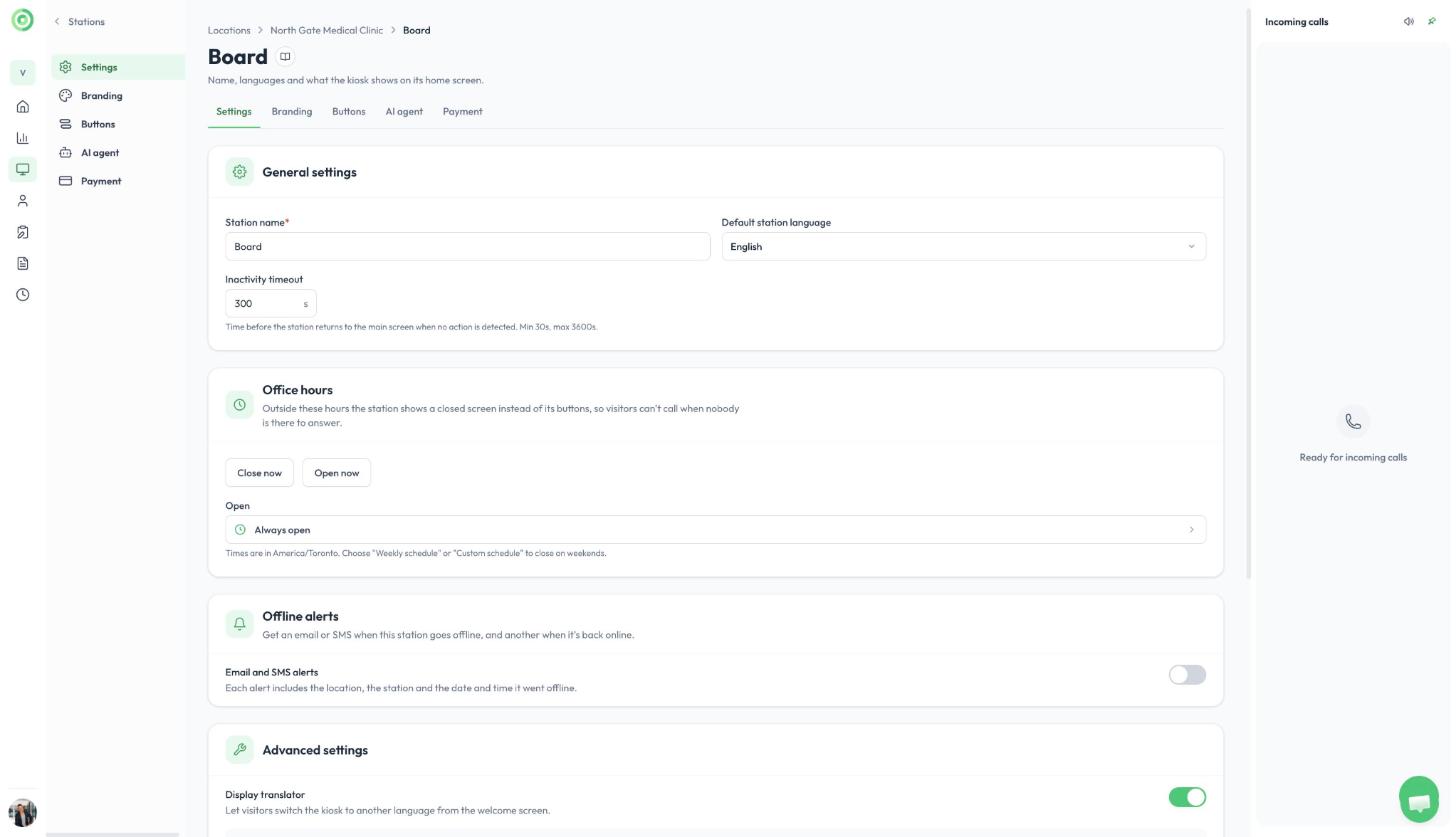
- On the Settings tab, find the Office hours card.
- Click the Open field. By default it says Always open.
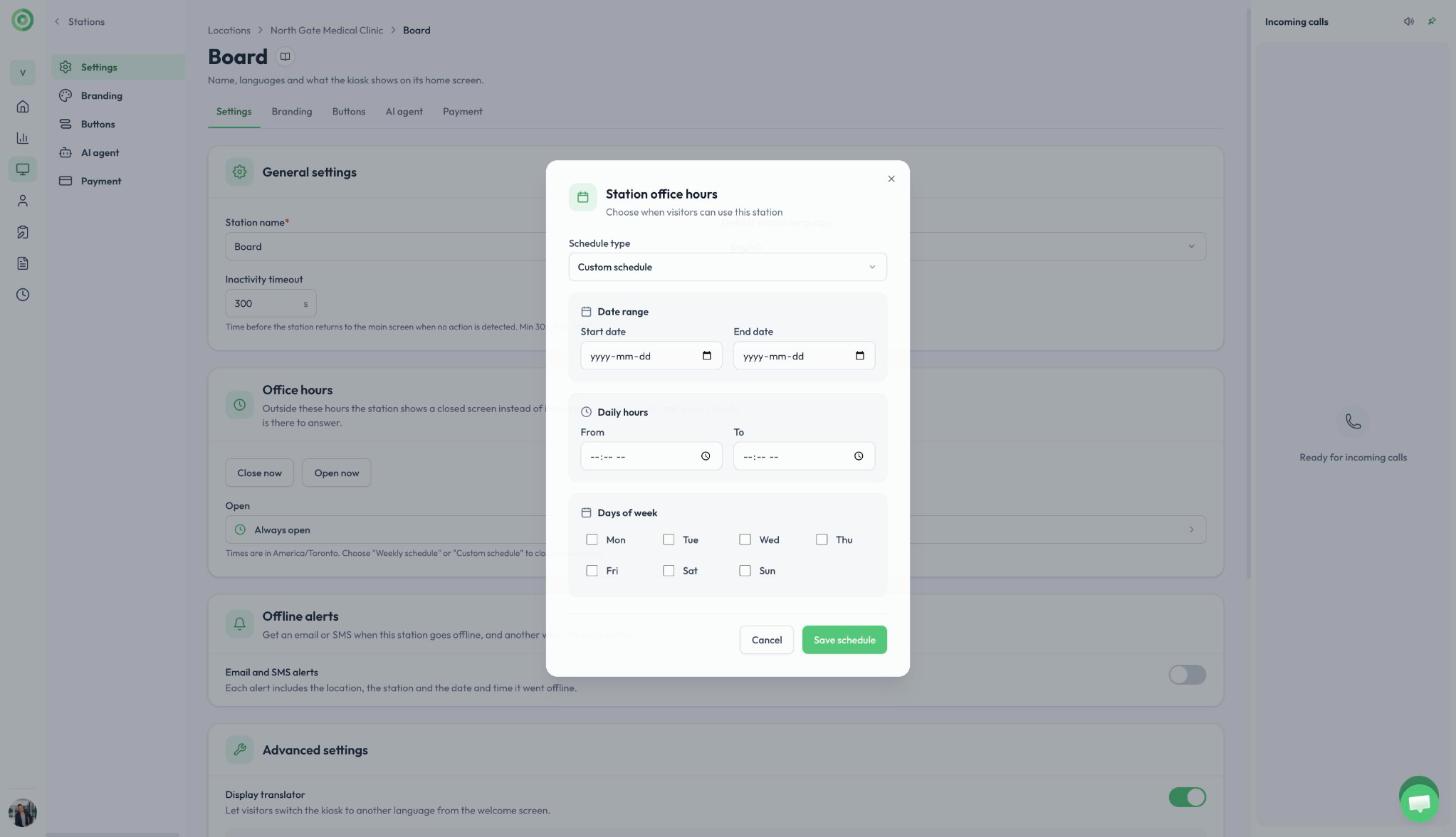
- In the Station office hours window, choose a Schedule type and fill in the times.
- Click Save schedule, then save the station's settings.
The Office hours card in the station's settings
The schedule types are:
- Always open: the station never closes. This is the default.
- Date range: the station is open only between a start date and an end date.
- Daily hours: the station is open between the same two times every day.
- Weekly schedule: the station is open only on the days of the week you tick.
- Custom schedule: combine a date range, daily hours and days of the week. For example, open Monday to Friday from 09:00 to 17:00.
A custom schedule
Times follow the time zone shown under the Open field. To close on weekends, choose Weekly schedule or Custom schedule.
Add your own closed message (optional)
Once office hours are set, you can enter a Closed screen message, for example "Please come back during our opening hours." It is shown under "We're currently closed". Leave it empty to show the standard text in the visitor's language.
Close or open a station right now
You can override the schedule at any time from the same card, for example to close early for a holiday or to stay open for a late appointment. These buttons take effect right away and do not need the station's Save button.
- Close now: the station shows the closed screen within a few seconds. You are asked to confirm first. It stays closed until your schedule next opens. If the station has no schedule, it stays closed until you open it again.
- Open now: the station shows its buttons again. It stays open until your schedule next closes.
- Back to the schedule: appears while a manual override is on. Click it to return to your normal office hours.
A notice in the card always tells you what is in effect.
Office hours and button schedules
Each station button can also have its own schedule (see Creating Stations). A button schedule hides one button. Office hours close the whole station.
While a station is closed by its office hours, no offline alerts are sent for it. See Station offline alerts.