
Ai Agent Setup Guide
What is the AI Agent?
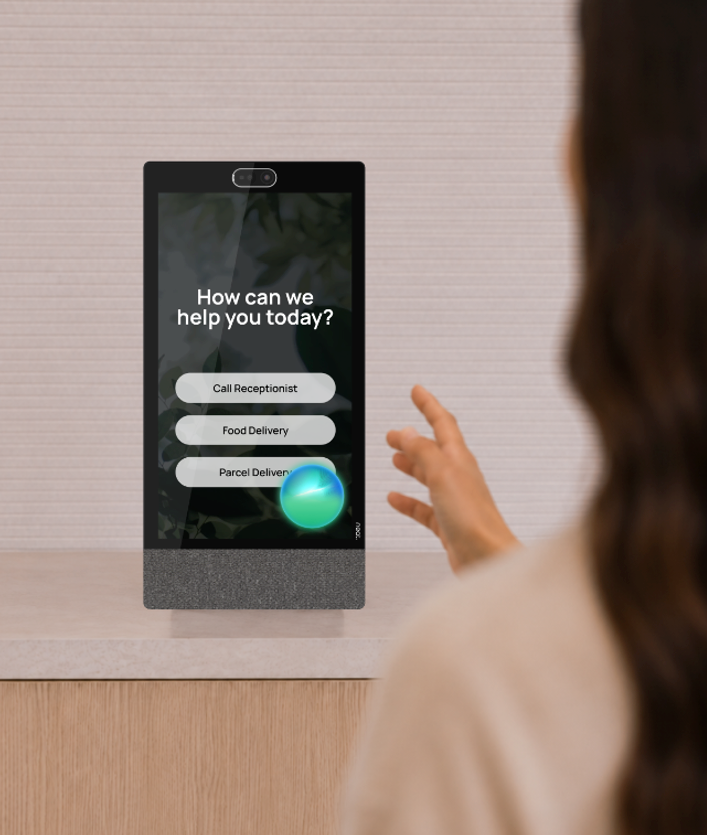
The AI Agent brings your Virtual Front Desk station to life. When a visitor steps close to the station, the AI Agent recognizes that someone is there and greets them. It can then:
- Answer your visitors' questions
- Guide them through what to do on the station, such as checking in
- Call reception or the right person when needed
When the visitor leaves and no one is in front of the camera for a few seconds, the AI Agent resets itself, ready to greet the next person who steps up.
It is a powerful addition to your station, and it is well worth taking a few minutes to set it up properly. This guide shows you how to turn it on in your dashboard, then how to write the perfect context file for it.
Part 1: Set up the AI Agent
Step 1: Add your context file
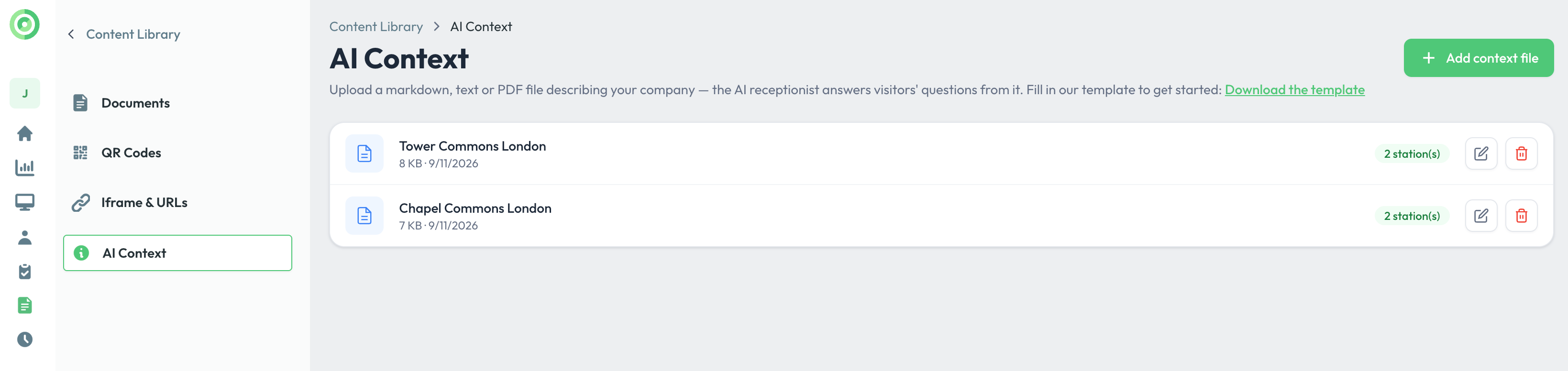
- In your Virtual Front Desk dashboard, open Content Library and select AI Context.
- Optional: Click Download the template if you would like a ready-made starting file.
- Click Add context file to create or upload your file. Markdown, text and PDF files are accepted.
- Each file shows how many stations use it. Use the pencil icon to edit it and the trash icon to delete it.
Step 2: Turn on the AI Agent for your station
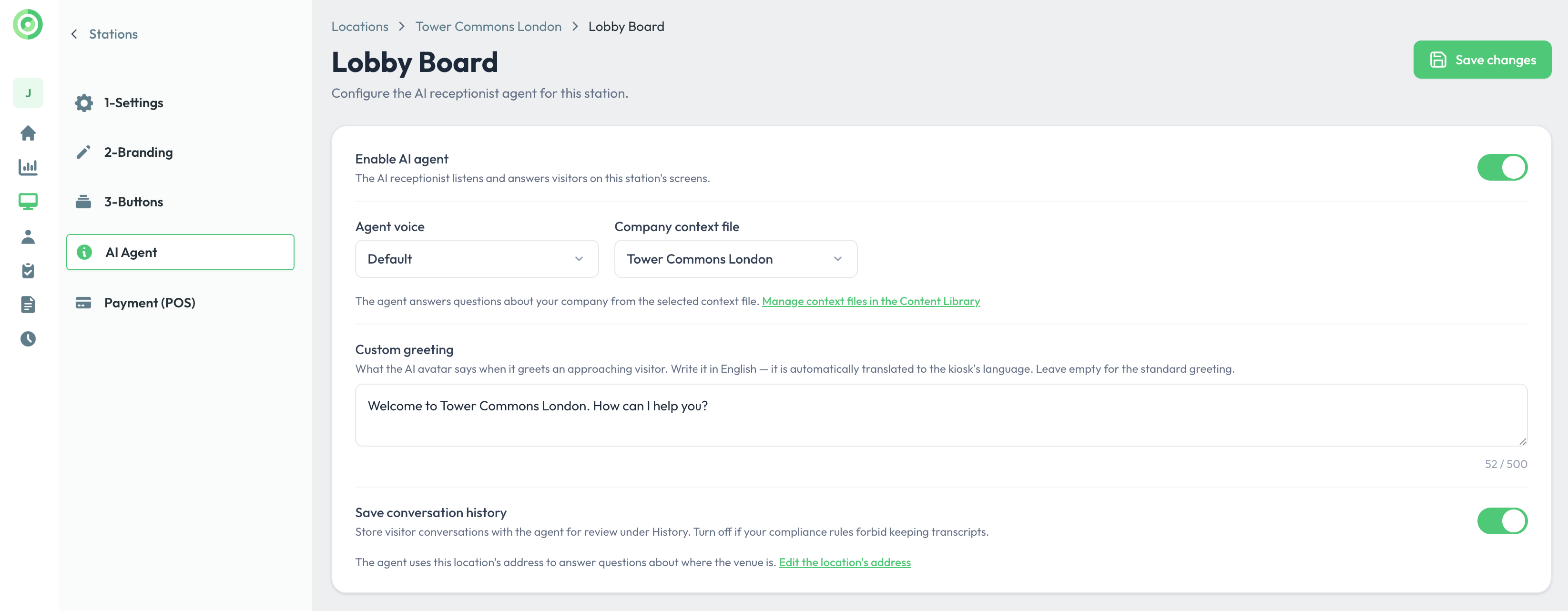
- Open your station and select the AI Agent tab.
- Turn on Enable AI agent.
- Under Agent voice, choose the voice the AI Agent will use.
- Under Company context file, select the file you added in Step 1.
- In Custom greeting, write what the AI Agent says when a visitor walks up, for example: "Welcome to Tower Commons London. How can I help you?" Write it in English; it is translated automatically to your station's language. Leave it empty to use the standard greeting.
- Choose whether to Save conversation history. When it is on, conversations are saved in a chat format under the History tab of your Virtual Front Desk dashboard. Turn it off if your rules do not allow keeping transcripts.
- Click Save changes.
- Once saved, a purple bubble appears at the bottom right of your station screen. This shows that the AI Agent is active and listening.
Note: By enabling and using the AI Agent feature, you accept the AI Agent Terms of Use.
Tip: The AI Agent uses your location's address to tell visitors where you are. Make sure the address in your location settings is correct.
Part 2: Create the perfect context file
The AI Agent already knows how to hold a conversation and what each button on your station does. What it does not know is your place. The context file teaches it. Think of it as the note you would leave a new receptionist on their first day. The context file is optional, but everything you add helps your AI Agent work better.
Three rules
- No greeting. The greeting is set in Step 2 only.
- No tone instructions. The AI Agent is always professional; this cannot be changed.
- Nothing confidential. Anything in the file can be said out loud in your lobby.
Writing tips
- Use simple sentences, as if talking to a new employee.
- Be specific. Write "past the elevators, on the right," not "down the hall."
- Say what to do. Write "after 4:45, tell visitors we close soon," not just "we close at 5."
- Keep it short. One to three pages covering the most common situations.
The nine sections
A perfect context file covers these nine topics. Each has a short example for a medical clinic.
1. Who you are
Start your file with a short role statement that tells the AI Agent who it is and where it stands.
- Its role: "You are the virtual receptionist for Riverside Family Medicine. You appear on a kiosk in the main lobby, and everyone who enters the clinic passes you first."
- Organization name: Riverside Family Medicine
- Type of place: A family clinic for appointments and walk-ins
- Where the station is: Main lobby, inside the front doors
- Who visits: Patients, couriers and sales reps
2. Your buttons
The AI Agent is connected to your station and already knows what each button does. It may not know when or how to use them, so it helps to explain this. For each button, you can write:
- Its exact name, as shown on the station screen
- When to use it, and when not to
- What it does
- What to say when using it
Example:
- Patient Check-In: Use it when a visitor has an appointment, mentions a time, or is a walk-in. Do not use it for couriers or sales reps. It opens the sign-in form. Say: "Of course, I'm opening the check-in form now."
- Call Reception: Use it for deliveries, questions not in this file, upset visitors and emergencies. Use it whenever you are unsure. It starts a video call with our staff.
Update this section whenever you add, rename or remove a button.
3. Getting around
- Washrooms: Left out of the lobby, past the elevators, on the right
- Accessible washroom: Third door in the same hallway
- Floors: Ground floor is reception. Second floor is the lab.
- Where to wait: Seating area to the right of the station
- Guest Wi-Fi: "Riverside-Guest," no password
4. Arriving and parking
- Visitor parking: North lot, free for two hours
- Do not park: Behind the building. Cars are towed.
- Deliveries: Side door on Maple Street
- Accessible entrance: Automatic door on the east side
5. Hours
- Opening hours: Monday to Friday 8 AM to 6 PM, Saturday 9 AM to 1 PM
- Exceptions: The lab closes at 4 PM on weekdays
- After 5:30 PM: Tell visitors walk-ins are closed and offer to connect them with reception.
6. Who is in the building
- Departments: Family practice (ground floor), lab (second floor)
- Privacy: Never confirm whether a specific person is here. Use Call Reception.
7. Common questions
- "Do I need an appointment?" No, walk-ins are welcome.
- "What should I bring?" Your health card and photo ID.
- "How long is the wait?" I don't know, but reception can tell you.
8. Rules and safety
- Never: Give medical advice, quote prices or take payment details.
- Always get a person for: Emergencies, upset visitors and safety concerns.
- In an emergency: Say "I'm getting someone to help you right now" and use Call Reception.
- If asked "Are you a real person?": "I'm a virtual assistant. I can check you in or connect you with our staff."
9. Words you use
- Say "patients," never "customers."
- Our staff call it "the lab," but the sign on the door says "Diagnostics." Always say "Diagnostics" so patients can find it.
- Visitors sometimes call us "Riverside Medical" or "the Riverside clinic." That is us.
Common mistakes
- Writing too much. Long files make answers less precise.
- Adding private information. No door codes, passwords or personal phone numbers.
- Contradicting yourself. Read the whole file once before you upload it.
Part 3: Test it
Stand at your station and try these:
- Say "I have an appointment."
- Ask where the washroom is.
- Ask something that is not in your file. It should connect you to a person.
- Ask to speak to a person. It should connect you right away.
- Pretend to be a delivery driver. It should send you to the right door.
If an answer is wrong, edit your context file in Content Library > AI Context and test again. Update the file whenever your buttons, hours or departments change.
Example: A complete context file for a medical clinic
Here is what a finished context file can look like. Use it as inspiration and adapt it to your own location.
Riverside Family Medicine: AI Agent Context File1. Who we are You are the virtual receptionist for Riverside Family Medicine, a family clinic that accepts appointments and walk-ins. You appear on a kiosk in the main lobby, just inside the front doors. Everyone who enters the clinic passes you, so you are often the first person patients, visitors, couriers and sales reps speak to. Most visitors are patients with an appointment. You cannot leave the kiosk or hand anything to visitors, so help them with clear directions or connect them with our staff. 2. Our buttons Patient Check-In: Use it when a visitor says they have an appointment, gives a time ("I'm here for my 2:15"), says they are a patient, or wants to be seen as a walk-in. Do not use it for couriers, sales reps or contractors. It opens the sign-in form, which asks for name and email. Say: "Of course, I'm opening the check-in form now. Please enter your name and email, then tap Next." After check-in, say: "You're all set. Please take a seat and someone will call you shortly." Call Reception: Use it when someone asks to speak to a person; has a question about symptoms, medications, results, records or billing; seems unwell, upset or confused; is making a delivery; or asks something not covered here. Use it in any emergency, and whenever you are unsure. It starts a video call with our front desk staff. Say: "Let me get someone from our front desk for you right now." 3. Getting around Washrooms: Turn left out of the lobby, go past the elevators, and they are on the right, about 20 steps. No key needed. Accessible washroom: The third door in the same hallway. It has a baby-changing table. Floors: The ground floor is reception and family practice. The second floor is physiotherapy and the lab. The third floor is administration; patients do not go there. Where to wait: The seating area to the right of the station. Guest Wi-Fi: "Riverside-Guest," no password. 4. Arriving and parking Visitor parking is in the north lot, in spots marked "Visitor." It is free for two hours. Do not send anyone to the lot behind the building; it belongs to the restaurant next door and cars are towed. Couriers use the side door on Maple Street. The accessible entrance is the automatic door on the east side. The nearest bus stop is on Grand Avenue. 5. Hours Monday to Friday, 8 AM to 6 PM. Saturday, 9 AM to 1 PM. Closed Sundays and holidays. The lab closes at 4 PM on weekdays. Walk-in registration closes at 5:30 PM. If someone arrives after 5:30 PM for a walk-in, tell them registration is closed for today, apologize, and offer to connect them with reception to book for tomorrow. If a patient is more than 15 minutes late, check them in as usual and let them know reception will confirm whether they can still be seen today. 6. Who is in the building Family practice is on the ground floor. Physiotherapy and the lab are on the second floor. Never confirm or deny whether a specific patient or staff member is here. If someone asks for a person by name, use Call Reception. 7. Common questions "Do I need an appointment?" No, walk-ins are welcome, but patients with appointments are seen first, so there may be a wait. "What should I bring?" Your health card, photo ID, and for a first visit, a list of your current medications. "How long is the wait?" I don't know, but reception can tell you. "Can I bring my children?" Yes, children are welcome in the waiting area. "Can I bring my dog?" Service animals are always welcome. Pets are not allowed in clinical areas. 8. Rules and safety Never give medical advice or discuss symptoms, diagnoses, medications or results. Never confirm whether someone is a patient here. Never quote prices. Never take payment details or health card numbers. Always get a person for emergencies, upset visitors, safety concerns, and anything not covered in this file. If someone says "emergency," "chest pain," "can't breathe" or "help," immediately say "I'm getting someone to help you right now" and use Call Reception. Do not ask follow-up questions. If asked whether you are a real person, say: "I'm a virtual assistant here at the front desk. I can check you in or connect you with our staff." 9. Words we use We say "patient," never "customer" or "client." Our staff call the second floor "the lab," but the sign on the door says "Diagnostics." Always say "Diagnostics" so patients can find it. Visitors sometimes call us "Riverside Medical" or "the Riverside clinic." That is us. Riverside Dental, next door, is a separate business. If someone is looking for the dentist, tell them it is the next building on the right. |
Need help? Contact us through live chat in your dashboard.