
Station search: hide names until the visitor searches
Station search: hide names until the visitor searches
When a station shows a list of people or groups, visitors can search it right on the screen. For each list, you decide whether the station shows everyone, or keeps the names hidden until the visitor types a match. Hiding names is useful for privacy in a public lobby, where you may not want every name on display.
How lists work on the station
- Shown (default): everyone in the list is displayed. Visitors can scroll, or type in the search bar, and the list narrows from the first letter.
- Hidden: the station lists nobody until the visitor's search matches someone. The station shows a short prompt telling the visitor what to type.
Every list on the station has a search bar, including submenus of several groups and the people lists on PDF, QR code, iFrame and sign-in form buttons. The AI agent never reads names from a hidden list.
Choose how a match works
When you hide a list, the A match needs option sets what the visitor must type:
- 3 letters of the name (closest match): the default. Names appear once the visitor has typed three letters that match.
- The full last name (exact match): a person appears only when the visitor types their full last name. For a list of groups, the option is the full group name. Until the name is complete, the station keeps asking the visitor to type the full last name instead of showing "No results found".
Where to find the setting
Only users with the Owner, Admin or Manager role can change this setting, because it lives in station, group and sign-in form settings. The setting appears wherever the station can show a list, as a toggle named Hide names until the visitor searches (or Hide groups until the visitor searches for a list of groups).
On a group
- In the main menu, click User management, then open the Groups tab.
- Click the pencil icon next to the group.
- Under Call mode, select List. The Hide names until the visitor searches toggle appears below the call modes.
- Turn the toggle on, choose what A match needs, then click Save changes.
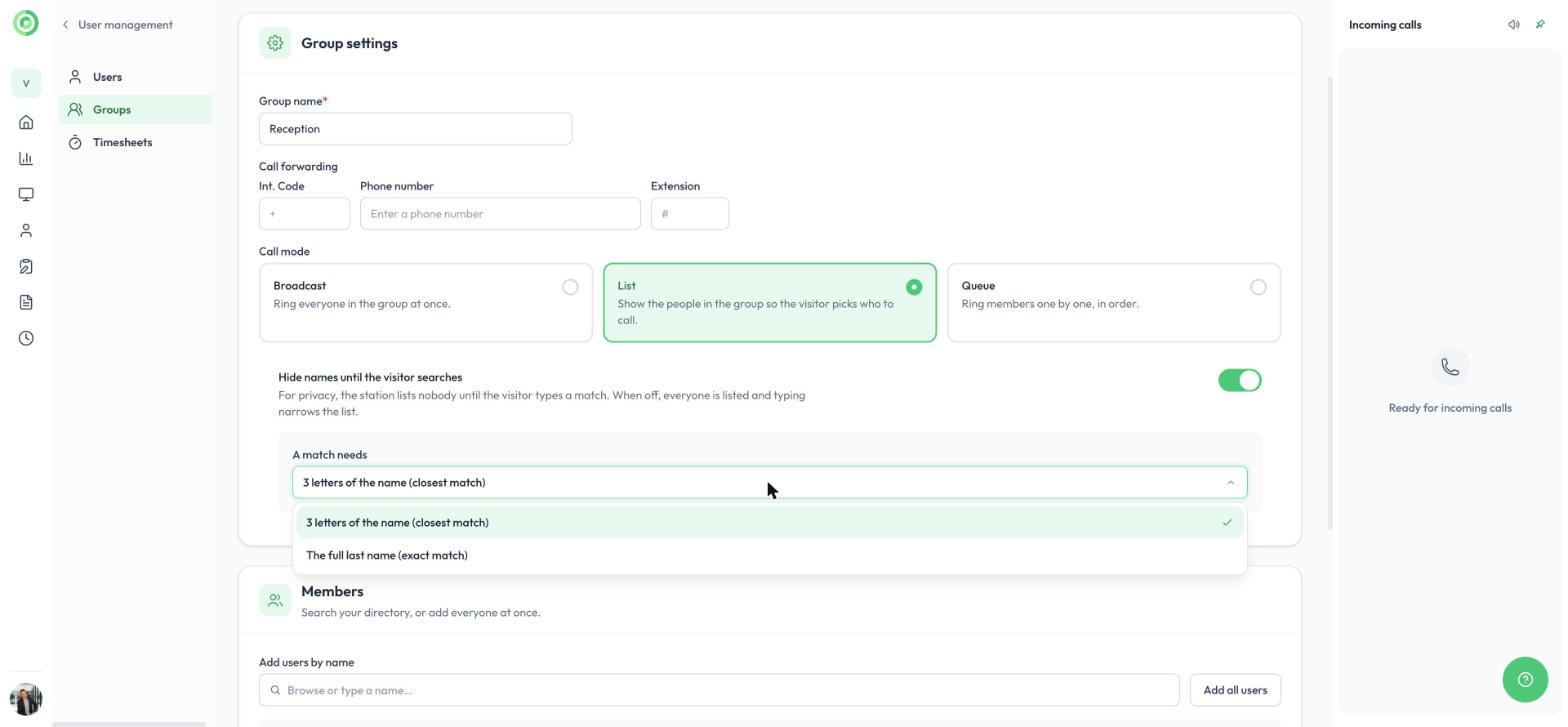
A List group with Hide names until the visitor searches turned on, and the A match needs options
The group's setting applies everywhere its list appears: on a button for that group, when a visitor opens the group from a submenu of several groups, and when a visitor picks the group as their host on a sign-in form.
On a station button
- In the main menu, click Stations, open the station and go to the Buttons tab.
- Edit a button that calls more than one user (Video call user) or more than one group (Video call group).
- Turn on Hide names until the visitor searches (or Hide groups until the visitor searches), choose what A match needs, then click Save changes.
A button with a single group in List mode has no setting of its own: it follows the group's setting.
On a visitor sign-in form
- In the main menu, click Visitor sign-in and open the form.
- In the Notifications section, select more than one user as hosts. The Hide names until the visitor searches toggle appears.
- Turn it on, choose what A match needs, then save the form.
When the host question offers groups instead of users, the station always shows the list of groups, so this toggle does not appear. If the visitor picks a List group as their host, the group's own setting decides whether its members are hidden (see On a group above).
What happened to Strict host search?
This replaces the Strict host search option that used to be under Settings > Organization > Features. Nothing changed for your visitors when the update arrived: lists that were hidden stay hidden, and organizations that used strict search keep the full last name rule on their hidden lists of people. You can now adjust each list on its own.
To learn more, read Groups and call queue and Visitor sign in, sign out and Express QR code sign in.