
Station offline alerts
Offline alerts tell you when a station stops working, for example because the tablet lost its Wi-Fi connection, ran out of battery or the browser was closed. You get one alert when the station goes offline and a second one when it is back online, so you can fix the problem before visitors notice.
Offline alerts are set for each station. To change a station's settings, you need the Owner, Admin or Manager role.
Turn on offline alerts
- In the main menu, click Stations.
- On the location card, click the three dots next to the station, then click Edit.
- On the Settings tab, find the Offline alerts card.
- Turn on Email and SMS alerts. Your own email address is added for you.
- Choose the Delay before alerting.
- Add the people who should be alerted under Send email to and Send SMS to.
- Save the station's settings.
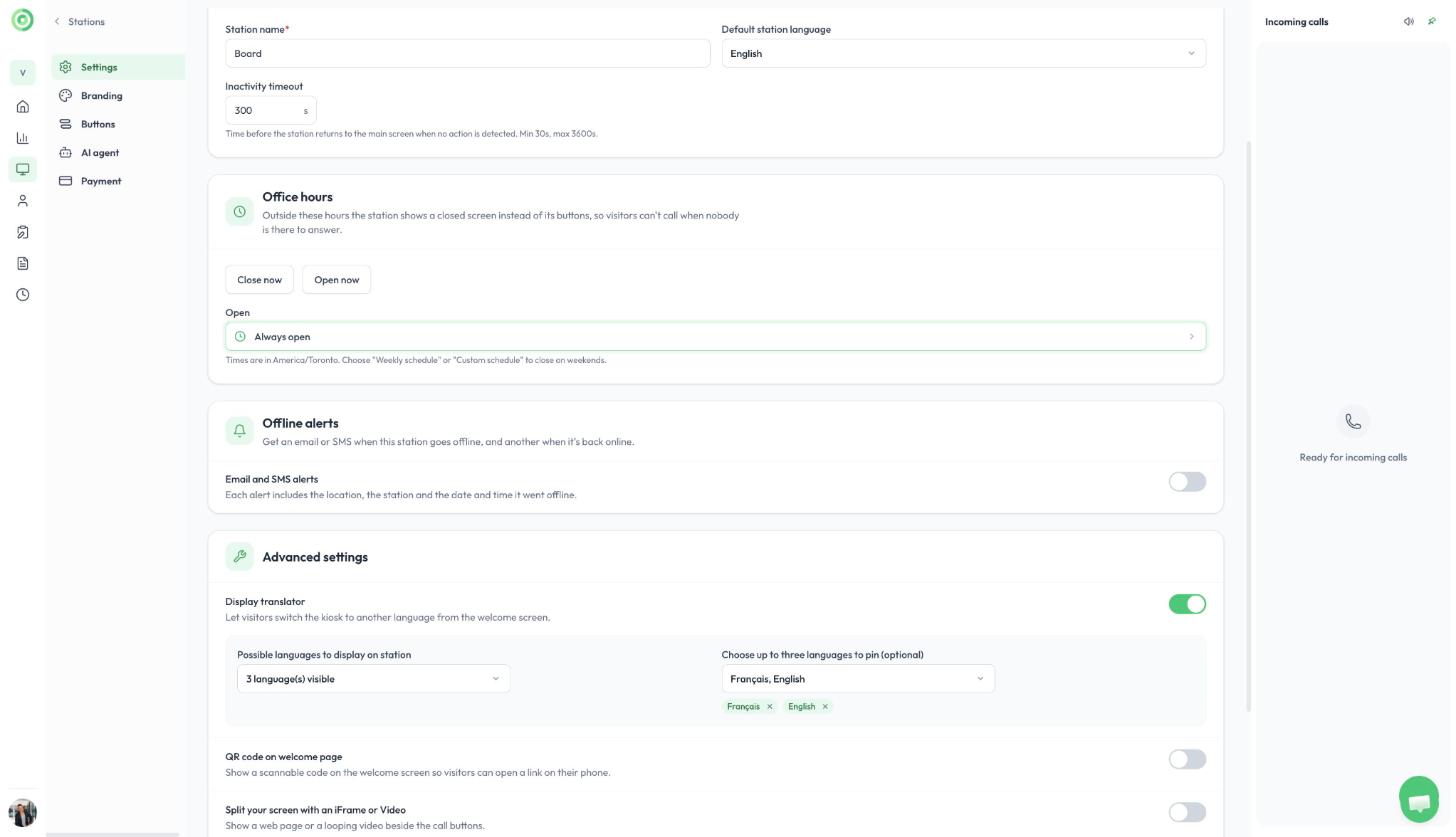
The Offline alerts card
Choose the delay
The Delay before alerting is how long the station must stay offline before an alert is sent: 2, 5, 10, 15, 30 or 60 minutes. The default is 5 minutes. Shorter outages, like a reboot or a brief Wi-Fi drop, send nothing, so you are not alerted for every small hiccup.
Choose who is alerted
- Send email to: click Add email address to add up to 10 email addresses per station.
- Send SMS to: click Add phone number, enter the country code (for example +1) and the phone number. You can add up to 10 phone numbers per station.
You need at least one email address or phone number to save. To remove someone, click the trash icon next to their address or number. Recipients do not need a Virtual Front Desk account, so you can alert your IT provider too.
What the alert says
Each alert includes the location, the station, and the date and time it went offline. A second alert is sent when the station reconnects. Alert times are shown in the time zone listed at the bottom of the card.
Offline alerts and office hours
No offline alert is sent while the station is closed by its office hours, so turning a tablet off at night does not wake anyone up. Without office hours, alerts are sent around the clock. See Office hours and the closed screen.
If a station keeps going offline
- Make sure the device is plugged in and its sleep or screen timeout settings are off.
- Keep the station in kiosk mode so the browser cannot be closed by accident. See iPad Kiosk mode, Android tablets and Windows Kiosk mode.
- Check the Wi-Fi signal where the station stands. The Network column on the Dashboard shows each station's connection strength.
- For network and firewall settings, read Trouble shooting guide, Firewall, Permissions.