Groups and call queue
Groups and call queue
Groups let a single station button reach several users. A group decides who is called and how: everyone at once, one after another in a call queue, or from a list where the visitor chooses. A group can also forward the call to a phone number when no one answers.
Create a group
- In the main menu, click User management, then open the Groups tab.
- Click Add group.
- Enter a Group name.
- Optionally, enter a Call forwarding number (international code, phone number and extension). See Call forwarding for a group below.
- Choose a Call mode. See Call modes below.
- Under Members, add users by name, or click Add all users.
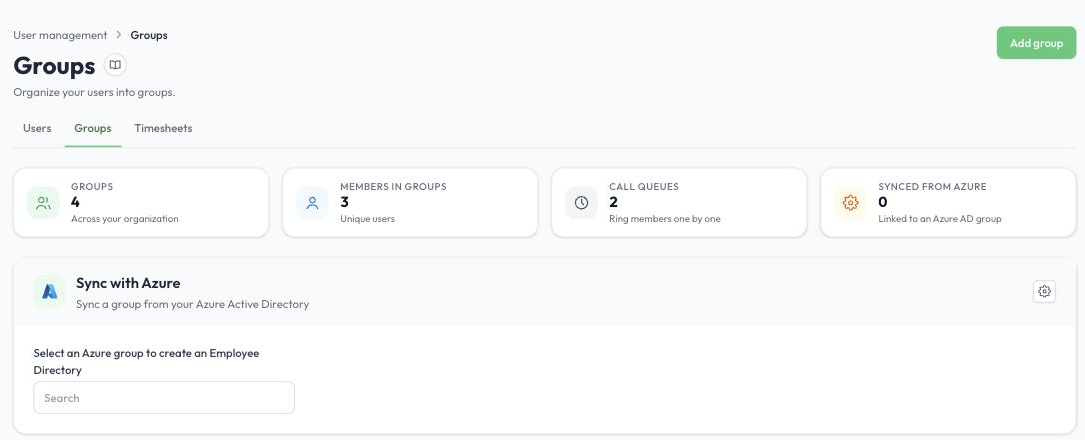
The Groups tab
The Groups tab shows how many groups you have, how many users belong to groups, how many groups are call queues, and how many are synced from Azure. To edit a group, click the pencil icon next to it. Every organization has a Default group.
Call modes
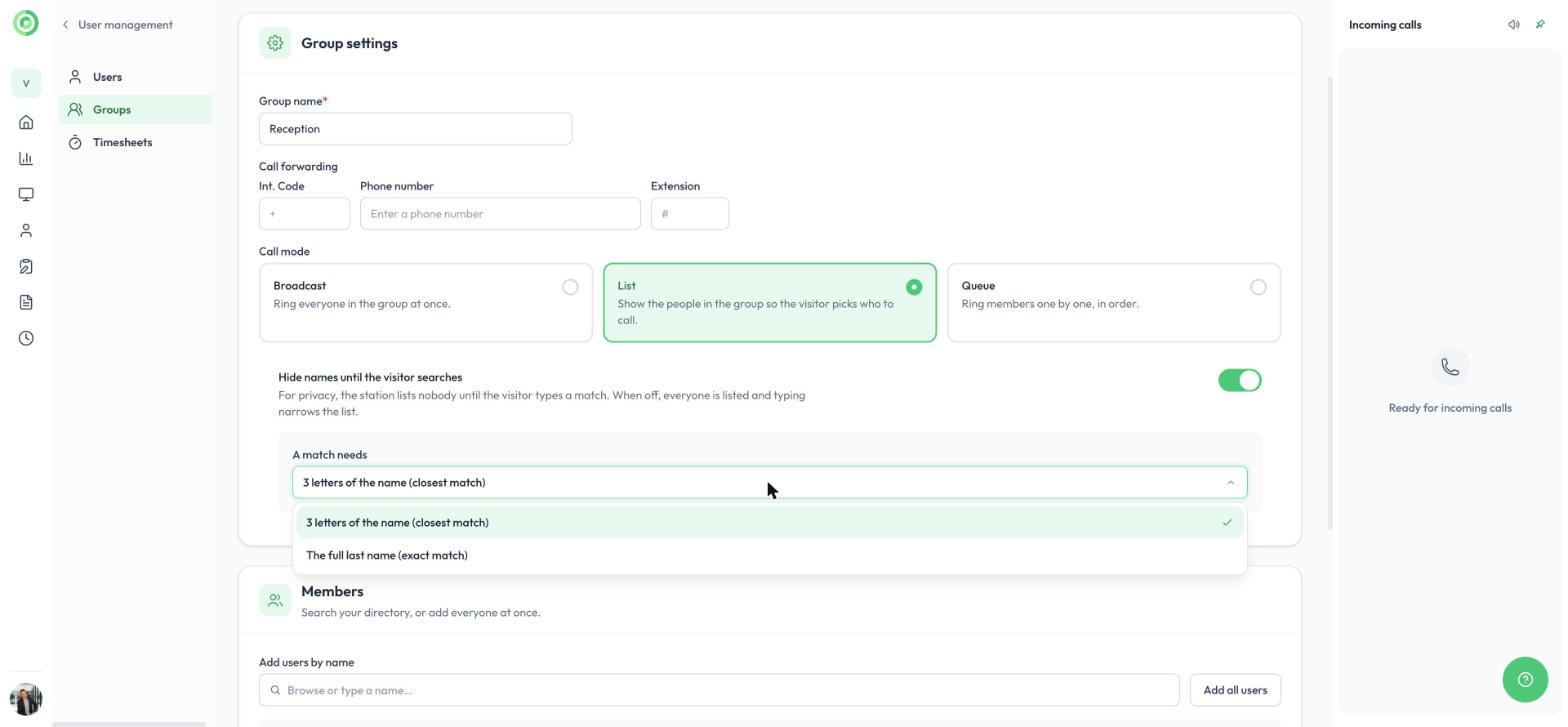
Group settings, call modes and the Hide names toggle
- Broadcast: rings everyone in the group at the same time. The first person to answer takes the call.
- List: shows the people in the group on the station, so the visitor chooses who to call. This works the same way when a visitor sign-in form contacts the group: after signing in, the visitor chooses the person, and only that person is contacted.
- Queue: rings members one by one, in order. If a member does not answer, the call moves to the next person in the queue. By default, each member rings for 30 seconds before the call moves on, and this delay can be changed.
For a List group, the Hide names until the visitor searches toggle appears below the call modes. When it is on, the station lists nobody until the visitor types a match. Under A match needs, choose 3 letters of the name (closest match), the default, or The full last name (exact match). When it is off, everyone is listed and typing narrows the list. This setting applies everywhere the group's list appears on the station. To learn more, read Station search: hide names until the visitor searches.
These call modes apply to video calls in Virtual Front Desk.
Call forwarding for a group
If you enter a call forwarding number, the system automatically dials that number when no one in the group answers the video call. By default, forwarding happens after 30 seconds, and this delay can be changed. This makes sure a visitor is never left waiting.
You can also create a group without any users and enter only a phone number. The button then skips video calls entirely and places a phone call directly. This is useful for phone-only options, such as a submenu of departments that each have their own phone line.
To learn more, read Phone calls and call forwarding.
Link a group to a station button
- In the main menu, click Stations, open the station, and go to the Buttons tab.
- Add or edit a button, and under Button action, select Video call group.
- Under Select group(s), choose one or several groups.
- Click Save changes.
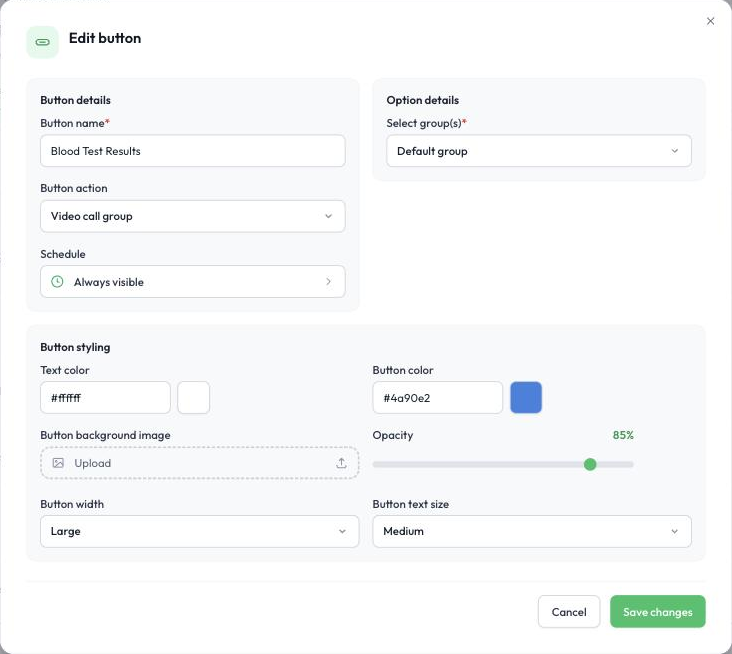
Linking groups to a station button
The button then calls only the members of the selected group, using the group’s call mode and call forwarding number. When you select more than one group, the button opens a submenu on the station, and the visitor chooses which group to call.
Groups in visitor sign-in forms
A visitor sign-in form can also contact a group when a visitor signs in, either because the form always contacts that group or because the visitor picks the group as their host. The group's call mode applies:
- Broadcast and Queue groups are contacted the same way as from a station button.
- List groups: after the visitor signs in, the station shows the people in the group and the visitor chooses the person they are visiting. Only that person is called. If the form has video calls turned off, only that person is notified (for example by Microsoft Teams message, SMS or email), not everyone in the group. In the sign-in history, the visit shows the person the visitor picked, not the group.
If a sign-in form offers only one host to choose from, the station skips the host selection screen and contacts that host directly, so visitors do not have to tap a single option.
To learn more about sign-in forms, read Visitor sign in, sign out and Express QR code sign in.
Groups synced from Azure
Under Sync with Azure, you can select a group from your Azure Active Directory to create an employee directory. To learn more, read Azure Groups.
Groups with Microsoft Teams users
When a group contains users who receive their calls in Microsoft Teams, Broadcast is not available. Use the Queue or List call mode instead.
For more flexibility, you can instead create a call queue in the Microsoft Teams admin center and import it into Virtual Front Desk:
- Under User management > Users, search for the Microsoft Teams call queue in the Microsoft Teams integration search box.
- Turn on the MS Teams Call Queue option and add it like a regular user.
- On your station, set a button’s action to Video call user and select the call queue.
Pressing the button starts a video call into your Microsoft Teams call queue. To learn more, read MS Teams integration for video calls, call queue & auto attendant.
Using a Microsoft Teams auto attendant
To reach a Microsoft Teams auto attendant, set a button’s action to Phone call and enter the auto attendant’s phone number. The system dials it automatically.
If you need a submenu of several auto attendant numbers, create groups without users, enter the matching phone number for each group, and select those groups on a Video call group button. Each option then places a phone call to its auto attendant number.
Note: Auto attendants support audio (phone) calls only.
To learn more, read MS Teams Call Queue & Auto Attendant Explained.